How can you transfer files wirelessly between Android and PC (or Android & Android)?
We can transfer the files between Android devices and PC , We can access our contacts , messages , call logs , photos , videos and music in our phone , We can control our phone’s camera , copy our PC clipboard to our phone’s clipboard .
We can take the screenshot , We can drag and drop APK on our PC to be installed in our Android device , We can call anyone and we can send SMS from our PC with Airdroid connected too and some people are used apps to transfer the files .
How to transfer files between Android and PC (or Android and Android)?
We can synchronize or access the folders using the torrent technology without uploading to the server , We can access your PC via Wi-Fi with SMB Server , We can connect two devices without a Wi-Fi network , We can connect through the browser via the shared Wi-Fi , We can use free cloud storage services to transfer the files ( such as Dropbox or Skydrive ) .
We can set up the shared folder on Windows that we can access from Android , There are apps to transfer the file between Android devices and PC easily , It is wirelessly without looking for your USB cable and struggle to plug your USB at the right side .
Android devices such as Samsung or HTC require additional sync manager on top of needing the USB cable which is troublesome , If you choose to upload everything to the cloud storage , It can consume a lot of the bandwidth and the data quota if you have large files to be extracted .
Airdroid is the highly featured app on Google Play Store in 30+ countries , It is used to manage your Android phone or tablet from Windows , Mac or the Web , wirelessly , for free , For transferring the files at home , It is one of the most common ways to access your Android device from your PC , you can send and receive SMS messages .
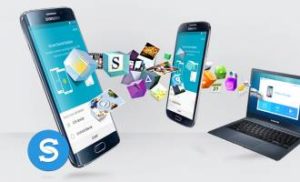
Transfer files wirelessly
You can use File Manager HD , If you need to access the files in your phone and extract them out , File Manager HD is the common fully featured file management tool , You can cut , copy , paste the files , You can delete , compress , decompress , search your files using this app .
Email is the go-to solution for quickly sharing the photos or the documents with the friends and co-workers , emailing yourself the desired attachments is still the great way to swap the files between your PC and your Android device .
If you are looking for the way to wirelessly move your media around , The best ways are Wi-Fi network , Bluetooth , USB On-The-Go , Wireless media readers , Dropbox and Email , If you want to transfer the files from your PC to Android and vice versa , You can use Bluetooth and send the files .
The transfer rates are very slow and you will do this with small text files , the pictures or the documents , You do not want to use this for stuff such as the large videos or lots of files at once , You can use Share to email , It works with small files only such as the photos or the documents but you can send most types of files over email .
You can use USB On-The-Go that allow you to connect your device to USB devices such as mice , keyboards and the external hard drives , It includes flash drives , You can use the cable to transfer the documents to the flash drive or the external hard drive or to your Android device .
Android USB OTG flash drives is one of the most popular things people need to transfer the files from their mobile device or tablet to their desktop , It is used to transfer the files from Android to PC .
Google Drive is used to transfer the files from Android to PC Cloud Storage ( Dropbox , Google Drive , OneDrive , Box.com , etc) , Google Drive is one of the most popular ways to deal with the files to put them in cloud storage .
Many cloud storage companies help you sync your device to the cloud and have integration with PC , So , you can send the files to the cloud and access them in your web browser or download them to your PC for later use .
ES File Explorer is one of the best file managers for Android and with its great set of features helps us to interact with the other devices on the network , Android device can be connected to the same router our computer is on and then ES can see can send the files directly to the PC over the Wi-Fi network .
Mobizen is used to transfer the files from Android to PC , It is an app which does not get a lot of press but works well , you can connect your PC to your Android device and vice versa using Mobizen , So , you can do stuff such as drag-and-drop file transfers .
PushBullet is used transfer the files from Android to PC , It can send/receive SMS from PC along with stuff like copying a link from Android and pasting it on PC .
Superbeam is used to transfer the files from Android to PC , It is the simple application which connects your devices directly over Wi-Fi , To use it , both your Android device and PC will have to be on the same Wi-Fi network but otherwise it works very well .
The advantages and disadvantages of Android mobile phones
How can you save the battery power on an Android phone ?
How can you transfer files wirelessly between Android and PC ( or Android and Android ) ?