Google Veo 3 AI Video Generator: How to Create INSANE Videos in Gemini AI Ultra! 🚀
Google Veo 3 has transformed AI video generation by allowing users to turn detailed text descriptions into impressive video clips, including cinematic scenes, realistic movement, and, depending on the available model and feature, generated audio. Gemini integrates Google’s video-generation capabilities into its AI ecosystem, while Google AI Ultra provides the highest level of access among Google’s consumer AI plans.
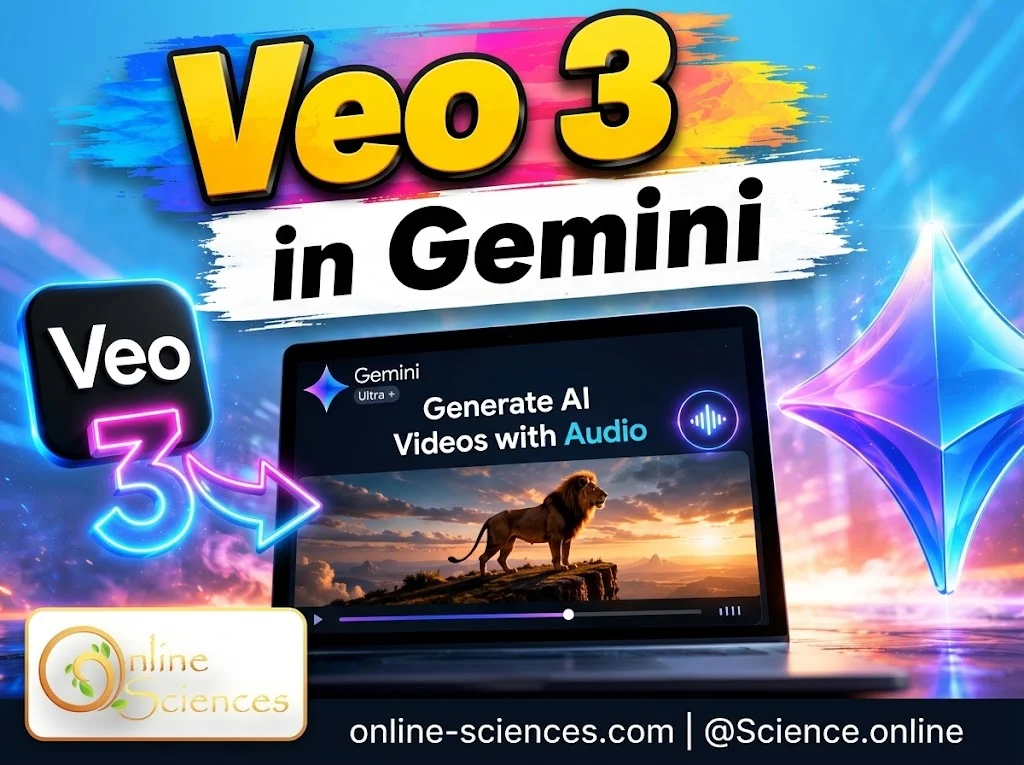
Google Veo 3 AI Video Generator
Google Veo 3 AI Video Generator
Google Veo 3 AI Video Generator is Google’s powerful AI tool that can transform text prompts into realistic, cinematic videos. It can create detailed scenes with natural movement, impressive visuals, camera effects, and, depending on the available version and features, synchronized audio. Veo 3 makes AI video creation faster and easier, helping creators produce engaging content for YouTube, social media, education, storytelling, and creative projects.
If you want to know how to use Google Veo 3 in Gemini AI Ultra, whether Gemini AI Pro has Veo 3, and whether you can use Google Veo for free, this guide explains the process and the important differences between Google’s plans.
What is Google Veo 3?
Google Veo 3 is Google’s advanced generative AI video technology. Instead of recording a scene with a camera, you describe what you want, and the AI generates a video based on your prompt.
A useful prompt can describe:
- The main subject.
- The environment.
- Character appearance.
- Movement and action.
- Camera angle.
- Lighting.
- Visual style.
- Atmosphere.
- Dialogue or sound, when supported.
For example, instead of writing: “A robot walking.”
you could write: “A friendly humanoid robot walks through a futuristic Tokyo street at night, neon signs reflecting on the wet pavement, cinematic camera movement, realistic lighting, detailed robotic movements.”
The more specific your prompt is, the more control you can have over the resulting scene. Google’s current AI video ecosystem includes multiple Veo versions and modes, so the exact model, resolution, duration, and generation limits can depend on the Google product and subscription you’re using. Google recommends checking the active model and current credit cost before generating in Flow.
How to Use Google Veo 3 to Generate Video?
Using Veo through Gemini is relatively straightforward.
Step 1: Open Gemini
Go to the Gemini website and sign in with your Google Account. You can also use the Gemini mobile application if video generation is available on your account and device.
Step 2: Look for the Video Option
Depending on the current Gemini interface, video generation can appear as a Video option in the prompt area. On some devices, you may need to open a More menu to find it. Google’s interface and feature availability can change, so you may not see the same buttons shown in older tutorials.
Step 3: Write Your Video Prompt
Describe the video you want Gemini to create. A strong Veo prompt can follow this structure: Subject + action + environment + camera + lighting + style + audio/dialogue
For example: “A small futuristic home robot wakes up on a modern desk, looks around curiously, and waves at the camera. Warm morning sunlight enters through the window. Slow cinematic camera movement, realistic materials, natural shadows, and detailed mechanical movements.”
Step 4: Generate the Video
Submit the prompt and allow Gemini to process it. Video generation can take longer than ordinary text or image generation because the system has to create multiple frames and maintain visual consistency throughout the clip.
Step 5: Review the Result
Watch the generated video carefully. Look for:
- Character consistency.
- Realistic movement.
- Hands and facial details.
- Background accuracy.
- Camera movement.
- Text and signs.
- Audio quality, when available.
If the result isn’t what you wanted, refine the prompt rather than simply repeating the same request.
How to Write Better Veo 3 Prompts
The quality of your prompt can dramatically affect your results.
Instead of: “Make a video of a robot.”
try: “Create a cinematic 8-second video of a small white humanoid robot walking through a futuristic laboratory. The robot looks curious and friendly, slowly turns toward the camera and raises one hand. Soft blue laboratory lighting, realistic reflections, shallow depth of field, smooth camera tracking, photorealistic style.”
This gives the AI considerably more information.
Include Camera Instructions
You can describe shots such as:
- Close-up.
- Wide shot.
- Tracking shot.
- Overhead shot.
- Low-angle shot.
- Slow zoom.
- Camera pan.
Describe Movement
Explain exactly what happens: “The robot walks forward, stops, turns toward the camera and waves.” This is generally more useful than simply saying: “A robot walks.”
Add Visual Style
You can request:
- Photorealistic.
- Cinematic.
- Documentary.
- Sci-fi.
- Animation.
- Commercial.
- Futuristic.
- Dramatic.
- Bright and colorful.

How to Create INSANE Videos in Gemini AI Ultra!
How to Use Veo 3 in Gemini AI Ultra?
Google AI Ultra is Google’s higher-end consumer AI subscription and is designed for users who want expanded access to Google’s most advanced AI capabilities. Google’s current help documentation confirms that AI Ultra provides higher Gemini usage limits than AI Pro, although limits and available features can change over time.
For video creation, Ultra users can access Google’s advanced video-generation ecosystem, subject to availability in their country and the particular Google product being used. The important point is that Gemini and Flow are not necessarily identical experiences.
Google Flow is Google’s filmmaking-oriented tool and supports multiple Veo models and video-generation features. Its interface lets users check the active model, resolution, and credit requirements before generating. Therefore, if you’re looking for the most control over AI filmmaking, it is worth checking both Gemini and Flow rather than assuming that every Veo feature appears in exactly the same place.
Does Gemini AI Pro Have Veo 3?
Yes, Google AI Pro can provide access to Veo video-generation capabilities, but the exact Veo model and level of access matter. This is one of the most confusing parts of Google’s AI plans. Older information about Veo 3 and Gemini often refers to the original rollout of Veo 3, while Google’s current ecosystem has evolved to newer Veo versions and different access levels.
Google’s current documentation states that AI plans have different usage limits, and Google can change model names, availability, and limits over time. So, if you have Google AI Pro, don’t assume that you automatically receive exactly the same Veo access as an AI Ultra subscriber. For users who need the highest available video-generation access, AI Ultra is the more comprehensive option.
Google AI Pro vs. Google AI Ultra for Veo
Google AI Pro vs. Google AI Ultra for Veo: Google AI Pro and Google AI Ultra both provide access to advanced Google AI features, but Ultra is designed for users who need higher usage limits and broader access to Google’s most powerful AI models and creative tools.
For Veo video generation, Google AI Ultra is the better choice for frequent creators who want greater access and more generous limits, while Google AI Pro can be a more affordable option for users who generate videos occasionally.
The exact Veo model, generation limits, and available features can change depending on Google’s current plans and regional availability, so users should check their Gemini account for the latest access. Google says AI Ultra can provide substantially higher Gemini usage limits than AI Pro, although exact limits can change.
How to Use Google Veo 3 for Free?
This question requires an important distinction. The full premium Veo experience is not simply an unlimited free feature of Gemini. Google’s AI video features are subject to plan, model, region and usage restrictions. Google’s current documentation also states that some media-generation features consume usage limits.
Therefore, be careful with websites claiming: “Unlimited Google Veo 3 completely free.” Many such claims can refer to:
- Limited trials.
- Promotional access.
- Older versions.
- Third-party interfaces.
- Limited daily generations.
- Different Veo models.
Google’s available plans and limits can also change, so always check your Gemini account and Google’s current plan information before paying for a subscription.
Is Google Veo Free With Gemini?
Not as an unlimited premium feature. Gemini itself has a free tier, but advanced media-generation capabilities can have separate eligibility and usage requirements. Google’s current Gemini documentation distinguishes between users without an AI plan and subscribers to AI Plus, AI Pro and AI Ultra. Feature availability and usage limits vary by plan. So the simple answer is: Gemini is available for free, but premium Veo video-generation access is not equivalent to unlimited free Veo.
Gemini Veo 3 Video Generation Tips
If you want better results, follow these practical tips.
- Start With One Clear Scene: Don’t ask the AI to create an entire movie in one prompt. Create individual shots instead.
- Describe the Camera: Tell Veo how you want the camera to behave. For example: “Slow dolly-in toward the robot.”
- Specify Lighting: Try descriptions such as: “Warm golden-hour lighting with soft shadows.”
- Keep Characters Consistent: Use the same detailed description of your character when creating multiple scenes.
- Don’t Overload the Prompt: More words don’t automatically mean a better video. The goal is specificity, not unnecessary complexity.
- Experiment: AI video generation is inherently iterative. Generate a first version, identify what went wrong, and then modify the prompt.
Google Veo 3 for YouTube Creators
Veo can be particularly useful for YouTube creators, bloggers and social-media publishers. You can use AI-generated clips for:
- YouTube Shorts.
- Intro sequences.
- Science videos.
- Technology demonstrations.
- Futuristic concepts.
- Educational animations.
- Product concepts.
- Background footage.
- Social-media videos.
- Storytelling.
For a science and technology website, for example, Veo could create an opening scene showing a futuristic humanoid robot, an AI laboratory or a conceptual visualization of a technology that doesn’t physically exist yet. However, always review AI-generated content before publishing it, especially when the video presents scientific facts, people, products or real-world events.
Why Google Veo 3 is important in 2026
AI video generation has moved beyond simple animated pictures. Modern video models are increasingly capable of understanding: characters + environments + actions + camera movements + visual styles + audio
That makes tools such as Veo increasingly useful for creators who don’t have access to professional cameras, actors, locations or expensive production equipment. The biggest advantage is speed. Instead of planning a traditional shoot, creators can begin with an idea and transform it into a visual concept using a text prompt.
Google’s Flow documentation also shows that the Veo ecosystem is expanding into multiple generation modes, including text-to-video, frames-to-video, and reference-based workflows depending on the model.
Frequently Asked Questions about Google Veo 3
How do I use Google Veo 3 to generate a video?
Open Gemini, sign in with an eligible Google Account, select the available Video generation option, and enter a detailed prompt. Depending on your account and region, you may also have access to Veo through Google’s Flow filmmaking tool.
Does Gemini AI Pro have Veo 3?
Google AI Pro provides access to Google’s AI video-generation capabilities where available, but the exact Veo model and limits depend on Google’s current rollout, region, and plan. AI Ultra is the higher-access tier.
Can I use Google Veo 3 for free?
There may be limited access or promotional opportunities depending on Google’s current offerings, but you should not expect unlimited premium Veo generation on the standard free Gemini tier.
Is Google Veo free with Gemini?
Gemini has a free tier, but premium video-generation features can require an eligible Google AI plan and are subject to usage limits and regional availability.
Is Google AI Ultra worth it for Veo?
It can be worthwhile for creators who generate AI videos frequently and need higher usage limits and broader access to Google’s advanced AI tools. Occasional users may find a lower tier more suitable.
Where can I use Veo besides Gemini?
Google’s Flow filmmaking tool also supports Veo models and provides additional video-generation workflows. The available models and features can change, so check the active model and current credit requirements before generating.
Can Veo create realistic videos?
Yes. Veo is designed for high-quality generative video, and detailed prompts can help produce cinematic and realistic-looking scenes. Results can still contain visual inconsistencies, so generated footage should be reviewed carefully.
Final Verdict
Google Veo 3 is one of the most exciting AI video-generation technologies available through Google’s ecosystem. For beginners, Gemini provides a convenient way to turn ideas into videos using natural-language prompts. For more serious AI filmmaking, Google Flow provides a more dedicated environment with different Veo models and generation workflows.
If your goal is simply to experiment, start with whatever video-generation access is already available in your Gemini account. If you are a frequent creator who needs higher limits and the broadest premium access, Google AI Ultra is the tier to consider. Because Google continues to update Veo models, limits and availability, check the current Gemini/Flow interface before assuming that an older Veo 3 tutorial still matches today’s options.
You can follow Science Online on YouTube at this link: Science Online
🔥 Is ChatGPT destroying Sophia.org and Study.com? 🚀
Gemini Takes Over: The End of Google Assistant in 2026! 🚀
Goodbye Google Assistant: Can Your Android Phone Actually Run Gemini? 🚀
Goodbye Google Assistant? 10 Powerful Reasons Gemini AI Is the Future in 2026
Will Gemini AI Replace Google Assistant? The Ultimate Guide to Google’s Powerful AI Upgrade 2026
Google Assistant Review 2026: Features, Pros, Cons and What It Can Do
Claude AI advantages, disadvantages, features and Is Claude better than GPT 4?
Claude Sonnet 4.5 features, advantages, disadvantages, Is Claude Sonnet 4 better than GPT 4?
Gemini AI review, advantages, disadvantages and Is Gemini AI better than ChatGPT?
ChatGPT review, features, advantages and disadvantages
Google Bard AI chatbot advantages, disadvantages, review, features and Bard vs ChatGPT