
Canva review 2026: 15 Powerful AI Features That Make It the Best Graphic Design Platform
Canva is one of the world’s most popular online graphic design platforms, helping millions of users create professional-looking designs without advanced design skills. Whether you are designing social media posts, presentations, logos, videos, documents, or marketing materials, Canva provides powerful AI-powered tools, thousands of templates, and an intuitive drag-and-drop editor that makes designing fast and enjoyable.
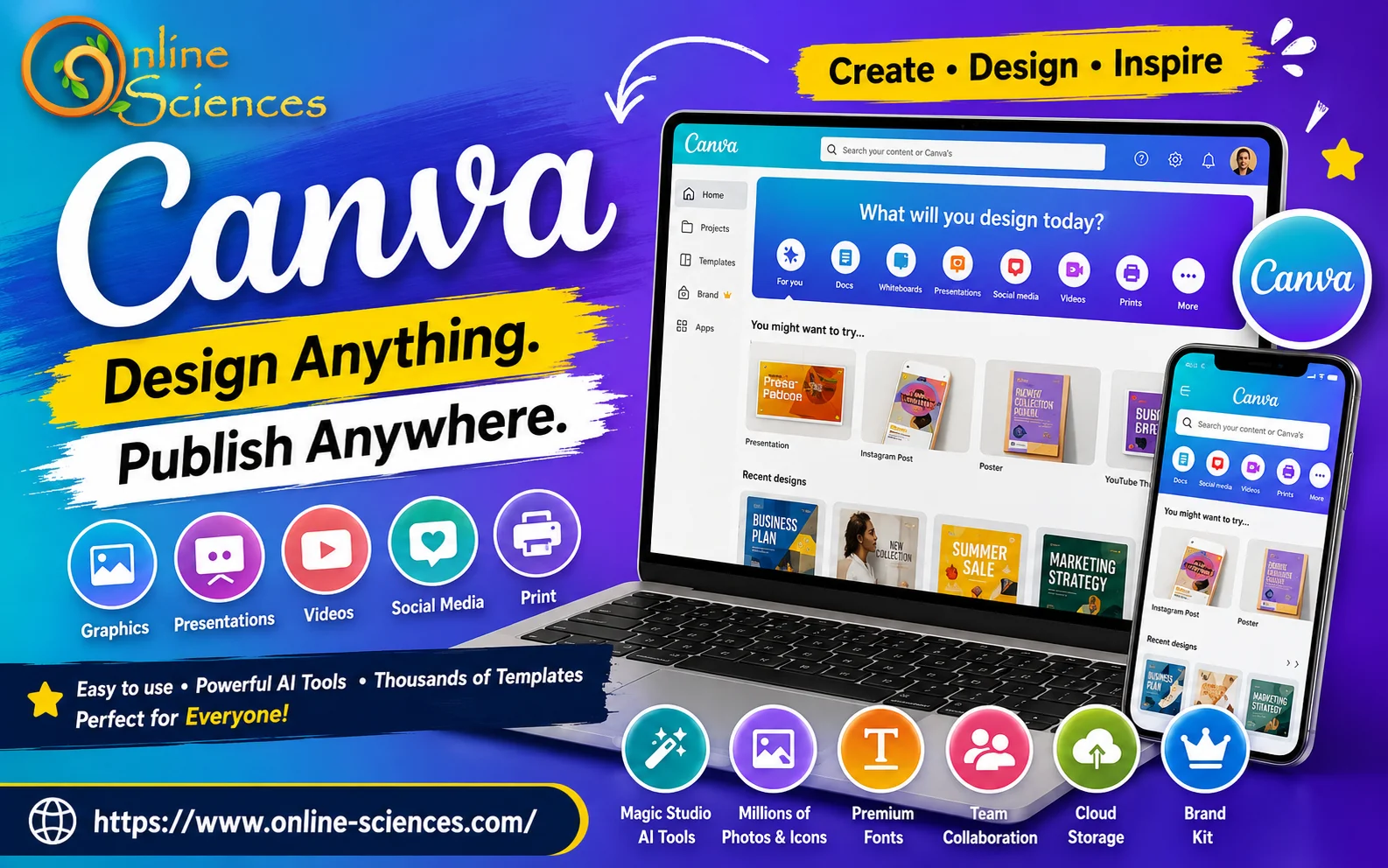
Canva
What is Canva?
Canva is a cloud-based graphic design platform launched in 2013 by Melanie Perkins, Cliff Obrecht, and Cameron Adams. It enables individuals, businesses, teachers, students, and marketers to create beautiful visual content directly from a web browser or mobile app. Unlike traditional graphic design software that often requires extensive training, Canva focuses on simplicity while still offering advanced capabilities for professionals.
Features of Canva
1. Drag-and-Drop Editor
The drag-and-drop interface allows users to create professional graphics in minutes without technical expertise.
Features include:
- Easy object positioning.
- Layer management.
- Smart alignment.
- Real-time editing.
- Instant resizing.
2. Thousands of Templates
Canva offers an enormous library of professionally designed templates for:
- Instagram Posts.
- Facebook Ads.
- YouTube Thumbnails.
- TikTok Videos.
- Business Cards.
- Flyers.
- Posters.
- Infographics.
- Brochures.
- Presentations.
- Resumes.
- Certificates.
- Invitations.
- Newsletters.
3. Canva AI (Magic Studio)
Canva has significantly expanded its AI capabilities with Magic Studio.
Popular AI features include:
- Magic Design.
- Magic Write.
- Magic Media.
- AI Image Generator.
- AI Background Remover.
- AI Translation.
- AI Presentation Generator.
- AI Voice Generation.
- AI Video Editing.
- AI Image Enhancement.
These tools dramatically reduce the time required to produce high-quality content.
Canva Docs
Canva Docs combines document editing with visual design.
Users can create:
- Reports.
- Meeting notes.
- Proposals.
- Project plans.
- Educational content.
- Marketing documents.
Unlike standard word processors, Canva Docs integrates graphics, videos, charts, and interactive elements.
Canva Presentations
Many educators and professionals now prefer Canva over traditional presentation software because it offers:
- Animated slides.
- Interactive elements.
- Beautiful templates.
- Collaboration.
- AI presentation generation.
- Presenter mode.
Canva Whiteboards
Canva Whiteboards help teams brainstorm ideas visually.
Perfect for:
- Remote teams.
- Teachers.
- Product planning.
- Workflow mapping.
- Mind maps.
- Agile planning.
Canva Video Editor
The built-in video editor supports:
- Video trimming.
- Music library.
- Text animations.
- Voice recording.
- Transitions.
- Subtitles.
- AI-powered editing.
This makes Canva suitable for YouTube creators and social media marketers.
Canva Photo Editor
Canva includes an advanced image editor capable of:
- Cropping.
- Filters.
- Color correction.
- Background removal.
- Magic Eraser.
- Blur effects.
- AI enhancement.
- Shadows.
- Frames.
Canva Brand Kit
Businesses can maintain consistent branding using the Brand Kit.
It stores:
- Company logos.
- Brand colors.
- Fonts.
- Icons.
- Templates.
- Design guidelines.
Canva Collaboration Tools
Teams can work together in real time by:
- Leaving comments.
- Sharing projects.
- Editing simultaneously.
- Managing folders.
- Assigning tasks.
- Version history.
Canva AI Image Generator
The AI Image Generator creates unique artwork from text prompts.
Common uses include:
- Blog illustrations.
- Social media graphics.
- Marketing campaigns.
- Concept art.
- Product mockups.
- Website banners.
Canva Magic Write
Magic Write helps users generate:
- Blog outlines.
- Product descriptions.
- Social media captions.
- Emails.
- Articles.
- Marketing copy.
- Headlines.
Canva Magic Resize
Instead of creating multiple designs manually, Magic Resize automatically converts one design into different dimensions for:
- Instagram.
- Facebook.
- LinkedIn.
- Pinterest.
- X (Twitter).
- YouTube.
- TikTok.
Canva Print
Canva also offers printing services for:
- Business cards.
- Posters.
- Flyers.
- Invitations.
- Stickers.
- T-shirts.
- Calendars.
Designs can be printed and delivered in supported regions.
Canva Pricing
Canva offers multiple plans.
Free Plan
Includes:
- Thousands of templates.
- Millions of photos.
- Basic editing tools.
- Cloud storage.
- Collaboration features.
Canva Pro
Adds:
- Premium templates.
- Brand Kit.
- Background Remover.
- Magic Resize.
- AI tools.
- More storage.
- Premium fonts.
Canva Teams
Designed for businesses and organizations with advanced collaboration, centralized asset management, and administrative controls.
Advantages of Canva
- Beginner-friendly interface.
- Huge template library.
- AI-powered productivity tools.
- Cloud-based access.
- Mobile and desktop support.
- Real-time collaboration.
- Affordable subscription options.
- Fast content creation.
- Excellent for social media marketing.
- Regular feature updates.
Disadvantages of Canva
- Limited compared to advanced software like Adobe Illustrator for complex vector work.
- Some premium assets require a subscription.
- An internet connection is needed for full cloud functionality.
- AI-generated content may require manual refinement.
- Advanced designers may find certain customization options restrictive.
Who Should Use Canva?
Canva is ideal for:
- Students.
- Teachers.
- Bloggers.
- Content creators.
- Small businesses.
- Marketing agencies.
- Entrepreneurs.
- YouTubers.
- Freelancers.
- Non-profit organizations.
- Social media managers.
Tips to Get the Most Out of Canva
- Use Brand Kit for consistent branding.
- Organize projects into folders.
- Explore Magic Studio AI tools to speed up content creation.
- Customize templates instead of using them unchanged.
- Collaborate with team members in real time.
- Export designs in the best format for each platform.
- Keep templates updated to match current design trends.
The Future of Canva
Canva continues expanding beyond graphic design into an all-in-one visual productivity platform. Future developments are expected to focus on more advanced AI-assisted design, smarter collaboration, improved video production, interactive documents, and enterprise-grade creative workflows, making it an even stronger competitor in the digital content creation space.
Frequently Asked Questions (FAQ) about Canva
1. What is Canva used for?
Canva is used to create graphics, presentations, videos, logos, social media posts, marketing materials, documents, and many other visual designs.
2. Is Canva free?
Yes. Canva offers a generous free plan with many templates and editing tools, while premium features are available through paid plans.
3. Is Canva good for beginners?
Absolutely. Canva is designed for users with little or no graphic design experience.
4. Can Canva create AI images?
Yes. Canva includes AI-powered image generation and editing features through its Magic Studio tools.
5. Can businesses use Canva?
Yes. Businesses use Canva for branding, presentations, advertisements, social media, team collaboration, and marketing campaigns.
6. Does Canva work on mobile devices?
Yes. Canva is available on Android, iPhone, tablets, desktop applications, and web browsers.
7. Can Canva replace Photoshop?
For many everyday design tasks, Canva is sufficient. However, Photoshop remains the better choice for advanced photo manipulation, professional retouching, and complex graphic editing.
8. Is Canva suitable for YouTube creators?
Yes. Canva provides templates for YouTube thumbnails, channel art, Shorts, videos, and promotional graphics.
9. Can multiple people edit the same Canva project?
Yes. Canva supports real-time collaboration, comments, and shared workspaces for teams.
10. Is Canva worth upgrading to Pro?
If you create content regularly, Canva Pro offers valuable features such as premium templates, AI tools, Magic Resize, Brand Kit, and additional storage that can significantly improve productivity.
Canva vs Adobe Express
Canva and Adobe Express are two of the most popular online graphic design platforms, but they cater to slightly different audiences. Canva is widely recognized for its user-friendly interface, extensive template library, and drag-and-drop editing experience, making it an excellent choice for beginners, educators, bloggers, and social media creators. Adobe Express, on the other hand, is designed to integrate seamlessly with Adobe’s creative ecosystem, making it a natural option for users who already work with Adobe Photoshop, Illustrator, or Creative Cloud applications.
When it comes to ease of use, Canva has a slight advantage thanks to its intuitive design tools and straightforward workflow. New users can quickly create professional-looking graphics, presentations, and videos without prior design experience. Adobe Express is also beginner-friendly but includes some Adobe-specific features and workflows that may require a short learning period for users unfamiliar with Adobe products.
For templates and design assets, Canva offers one of the largest collections of professionally designed templates covering social media posts, presentations, resumes, business cards, infographics, posters, flyers, and more. Adobe Express also provides high-quality templates, but Canva‘s library is generally larger and more diverse, making it easier to find designs for almost any project.
Both platforms have embraced artificial intelligence (AI) to improve productivity. Canva‘s Magic Studio includes AI-powered tools such as Magic Design, Magic Write, AI image generation, background removal, and automatic content creation. Adobe Express also offers advanced AI features powered by Adobe Firefly, including generative image creation, text effects, object insertion, and AI-assisted editing. Users seeking creative AI effects may appreciate Adobe Firefly, while Canva focuses on simplifying the overall design process with integrated AI assistance.
In terms of collaboration, Canva excels with real-time editing, comments, shared folders, and Brand Kit features, making it particularly suitable for businesses, schools, and marketing teams. Adobe Express also supports collaboration, but Canva‘s collaboration tools are generally more mature and easier to manage for larger teams.
For video editing, both platforms allow users to create promotional videos, presentations, and social media content with animations, music, transitions, and text effects. Canva offers a more streamlined workflow for beginners, while Adobe Express provides additional creative flexibility, especially for users who already use Adobe’s video-editing ecosystem.
Regarding pricing, both Canva and Adobe Express offer free plans with essential features and premium subscriptions that unlock advanced templates, AI tools, stock assets, and additional storage. Canva Pro is often considered one of the best value subscriptions for content creators because of its extensive template collection, Brand Kit, Magic Resize, and productivity-focused AI features. Adobe Express Premium is particularly attractive for users who already subscribe to Adobe Creative Cloud, as it integrates smoothly with other Adobe applications.
Overall, Canva is the better choice for most individuals, small businesses, educators, and social media creators who want an easy-to-use, all-in-one design platform with a vast template library and powerful AI tools. Adobe Express is an excellent option for designers and professionals already invested in the Adobe ecosystem, offering seamless integration with Creative Cloud and advanced AI capabilities through Adobe Firefly. Both platforms are powerful, but the best choice depends on your workflow, design experience, and whether you prioritize simplicity or deeper integration with professional creative software.
Canva is often preferred for its broader template ecosystem, intuitive interface, and all-in-one creative workflow, while Adobe Express integrates seamlessly with the Adobe Creative Cloud ecosystem.
Graphics tablet features, advantages, and disadvantages
Visual Communication features, advantages, and disadvantages