How can you save the battery power on an Android phone?
Android operating system offers many exciting features, such as Wi-Fi, GPS, and countless apps, but many of these features can take a toll on your device’s battery power, and they cause it to drain quickly. There are a few simple tricks you can try to extend the life of your device’s battery.
Android phone’s battery life
Most smartphones have a lithium-ion battery or a lithium-polymer battery. Both are actually lithium-ion, though. They do not have a memory, So, You can charge them from any level, and you should use a phone with a good processor.
You don’t have to fully discharge them before charging them up & you don’t have to charge them all the way to 100 percent. The batteries suffer from low voltage problems, so you can partially charge them rather than fully charge and fully drain them.
How to save battery power on an Android
You should navigate to Settings/battery to see the organized breakdown of what’s consuming your phone’s battery. The applications & features will display in a descending list of the battery hogs. If you see an application you barely use or a feature you never use, you should uninstall the app or turn off the feature.
You should trim all apps that are running in the background. From the Settings > Apps, swipe to the left, and you will see a list of apps that are currently running. You can tap on each one to see what they’re for. You can stop any apps that you don’t need running in the background all the time.
Some apps, such as the Play Store and Gmail apps, continuously collect and send data in the background. You can restrict such background usage of data per app, and your battery will be happier for it.
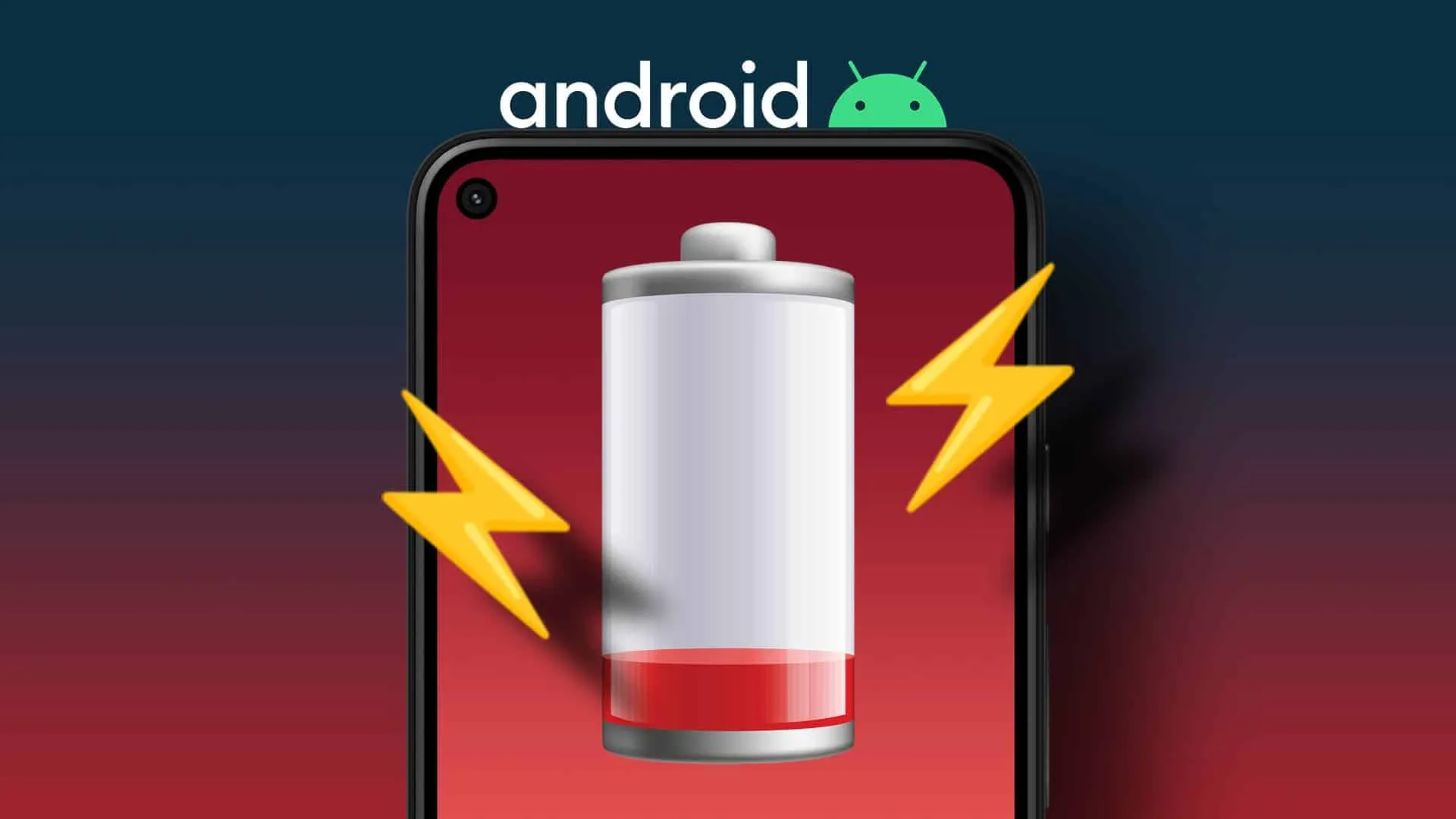
Android Phone’s Battery 5
You have to reduce email, Twitter, and Facebook polling. Auto Synchronization uses the background processes that can eat into both your mobile data use and your battery life. Set your various messaging apps to “manual” for the polling or refresh frequency, and you’ll instantly extend your device’s battery life by a significant amount.
You have to turn off unnecessary hardware radios. A lot of today’s phones have LTE, NFC, GPS, Wi-Fi, and Bluetooth. Android keeps location-based apps resident in the background, and the constant drain on the battery will become noticeable, fast.
If your phone has the power to control widgets, you can use it to quickly turn on/off GPS (the largest power drain), NFC, Wi-Fi, Bluetooth, and LTE. On stock Android, swipe down to bring up the Notification bar and then tap the icon in the top right corner.
You have to turn off Wi-Fi, Bluetooth and GPS, if you are not using them, All of them use the battery power, even when you are not using them, The wireless networking transmitter will continue to search for the wireless connection regularly as long as it is turned on, It uses the battery power, even if you are not browsing the internet.
You have to keep Wi-Fi on during sleep. If you have the choice between using Wi-Fi or cell signal, always choose Wi-Fi; Wi-Fi drains far less battery than cellular service. But in the Wi-Fi sleep mode, the 3G cellular service will be on automatically. To turn it off, go to Settings> Wi-Fi > advanced > keep Wi-Fi on during sleep.
You should turn on the power saving mode. For most devices, you have to swipe downward from the top of the screen to bring up the menu, scroll to the side until you find the power saving option, and select it. The power saving mode may slow your phone down a little.
When you get instant notifications from social media applications, they will stop until you open the application. The extra power saving mode limits the phone to texting, phone calls, Web browsing, and Facebook. It can squeeze the extra hours or even a day of standby time out of just a few remaining percentage points of battery.
You are able to dump all the unnecessary home screen widgets & live wallpaper, as they are sitting on the home screen, seemingly inactive. It doesn’t mean they’re not consuming the power. This goes for the widgets that poll status updates in the background.
It is very important to update your apps. A lot of the applications get updated to use less battery power, so you should make sure your apps are up to date. Even if you configured the phone for automatic updates, some apps still require that you manually install updates.
You can check for app updates in Google Play by hitting the menu key and going to My Apps. You can turn down the brightness and turn off Automatic Brightness, but you will be surprised by how much this one alone helps to improve the battery life.
You have to keep an eye on signal strength. If you are in an area with poor cellular coverage, the phone will work harder to latch onto a strong-enough signal. It harms the battery life. This could be the culprit behind a seemingly weak battery. It’s worth popping the phone into Airplane mode if you don’t need data or voice calls.
You can check the reviews. You can conduct the battery life tests on every single Android phone we review. The results vary widely between the handsets, even on the same network. When choosing the phone, make sure that the real-world talk time is sufficient.
You can shut down the vibration. To produce the vibration effect, your mobile should spin up a small vibration motor every time, which can be really draining on your battery. APP killers suck the battery rather than conserve it.
You can follow Science online on YouTube from this link: Science online
The advantages and disadvantages of Android mobile phones
How can you transfer files wirelessly between Android and PC (or Android and Android)?