
Google Gemini Live: Amazing AI Voice Assistant, How It Works & How to Set It Up in 2026
Google Gemini Live is an interactive AI assistant that lets you talk naturally with Gemini instead of typing every question. You can interrupt the conversation, ask follow-up questions, brainstorm ideas, practice conversations, share your camera or screen, and get real-time help based on what Gemini can see. In 2026, Gemini Live is moving beyond simple voice chat toward a more capable AI assistant that can work with Google apps and help with multi-step tasks.
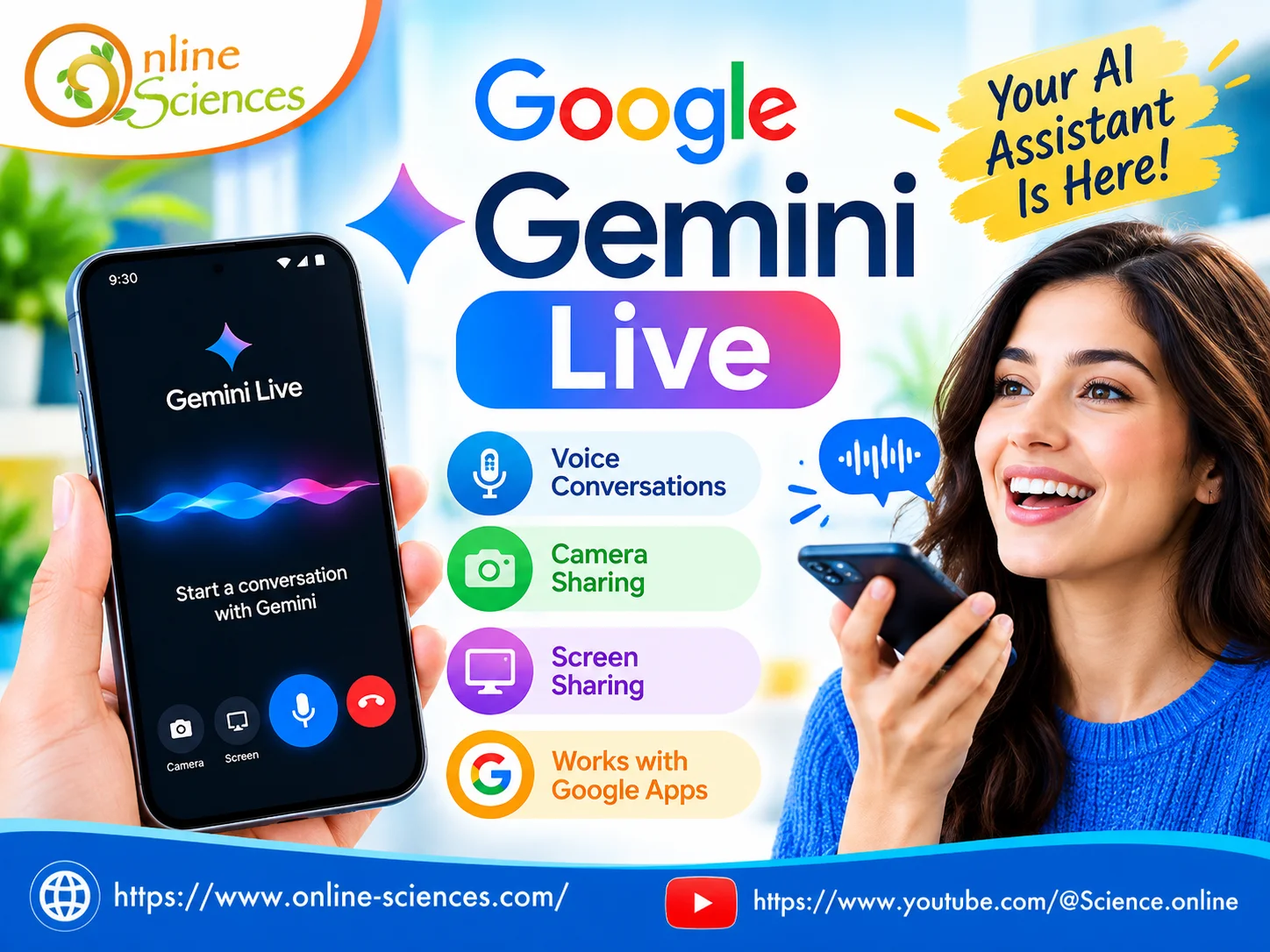
Google Gemini Live
What is Google Gemini Live?
Google Gemini Live is a conversational feature in the Gemini ecosystem that lets users have a more natural, spoken conversation with Google’s AI. Instead of writing a prompt, waiting for a text response, and then typing another question, you can speak to Gemini and continue the conversation naturally.
One of its most useful characteristics is that the conversation does not have to follow a rigid question-and-answer format. You can interrupt Gemini, provide additional information, change the subject, or ask a follow-up question while talking. Google describes Gemini Live as a way to brainstorm, explore subjects, practice aloud, and have back-and-forth conversations.
Gemini Live can also become multimodal. On supported devices, you can activate the camera and show Gemini something in the real world, or share your screen so Gemini can discuss what you are looking at. Google has demonstrated uses such as troubleshooting objects, organizing spaces, getting shopping advice, and receiving visual guidance.
How Does Google Gemini Live Work?
Gemini Live combines voice interaction, AI language understanding, and multimodal capabilities to make conversations feel more interactive.
The basic process is simple:
- You start a Live conversation.
- You speak naturally to Gemini.
- Gemini processes what you say and responds verbally.
- You can interrupt the response or add more information.
- If supported, you can activate the camera or screen sharing.
- Gemini uses the additional visual context to respond to your questions.
For example, imagine that you are repairing an unfamiliar device. Instead of describing every component by typing, you can point your smartphone camera toward the device and ask Gemini what you are looking at. Gemini can analyze the visual information and provide conversational guidance.
Google has also introduced visual guidance in Gemini Live, allowing Gemini to highlight things directly on the screen in supported experiences. This can make certain tasks easier because the AI is not only explaining something verbally but can help identify the relevant object or area visually.
What Can You Do With Gemini Live?
- Have Natural Voice Conversations: The main purpose of Gemini Live is conversation. You can talk to Gemini without continuously typing prompts. This can be useful when your hands are busy, when you want to brainstorm ideas aloud, or when you simply prefer speaking to an AI assistant.
- Brainstorm Ideas: Gemini Live can help you develop ideas through conversation. You can discuss a business concept, plan an event, think about a project, or generate ideas for a gift. Because you can interrupt and continue the discussion, the interaction can feel more like a conversation than a traditional search box.
- Learn and Practice: Students and professionals can use Gemini Live to practice speaking, rehearse interviews, explore subjects, and prepare for important conversations. You could, for example, ask Gemini to act as an interviewer and then respond to its questions verbally.
- Use Your Camera: Camera sharing makes Gemini Live more useful in real-world situations. You can point your camera at an object, workspace, clothing, tools, or another visual subject and ask questions about it. Google has highlighted examples such as organizing a room, troubleshooting objects, and getting shopping advice through camera-based conversations.
- Share Your Screen: Screen sharing lets Gemini discuss what is currently displayed on your phone. This can be helpful when you are looking at information, images, websites, or other content and want to ask questions about it. Google made Gemini Live’s camera and screen-sharing capabilities available to users on Android and iOS, although availability and specific capabilities can vary by device, account, and rollout.
- Connect With Google Apps: Google has been expanding Gemini’s ability to work with its ecosystem. Google announced connections involving apps such as Maps, Calendar, Tasks, and Keep, while newer Gemini Live updates have focused on productivity and hands-free assistance. This means Gemini Live is increasingly designed not simply to answer questions, but to help users accomplish tasks through conversational interaction.
How to Set Up Google Gemini Live
Setting up Gemini Live is generally straightforward.
On Android
- Install or update the Gemini app from Google.
- Sign in with your Google Account.
- Open the Gemini mobile app.
- Look for the Live button at the bottom of the screen.
- Tap Live.
- Follow the on-screen instructions the first time you use the feature.
- Start speaking to Gemini.
Google’s current Android instructions also say that users can start a Live conversation through a supported voice command. Camera streaming and screen sharing can be activated during supported Live conversations.
On iPhone and iPad
Gemini Live is also available through the Gemini mobile app on supported iPhone and iPad experiences. Open the Gemini app, tap Live at the bottom of the screen, follow the initial instructions, and start talking. Google notes that availability and features can change as updates are gradually released.
What Do You Need?
Requirements can vary depending on your device, account, region and the latest Google rollout. Google’s current help documentation lists supported Android phones/tablets or iPhone/iPad devices, the Gemini mobile app, an eligible Google Account and appropriate access to Gemini Apps.
Gemini Live on a Computer
Google is also bringing Live conversational capabilities to Gemini in Chrome. On supported computers, users can open Chrome, select Ask Gemini, choose Go Live, and follow the setup instructions. Google says this allows users to talk naturally with Gemini while browsing webpages, ask questions about a topic, brainstorm ideas, or get help finding information on a page.
A current version of Chrome and microphone/speaker permissions are required. This is an important development because it expands the Live experience beyond smartphones.
Gemini Live vs. Traditional Gemini Chat
The biggest difference is how you interact with the AI. Traditional Gemini chat primarily revolves around typed prompts and written responses. Gemini Live focuses on spoken, continuous interaction.
Gemini Live vs. Traditional Gemini Chat: Gemini Live and traditional Gemini Chat both use Google’s AI technology, but they provide different ways to interact with Gemini. Traditional Gemini Chat is mainly designed around typing prompts and receiving written answers, making it useful for research, writing, summarizing information, and detailed text-based tasks.
Gemini Live focuses on a natural, real-time voice conversation, allowing users to speak to Gemini, interrupt its responses, ask follow-up questions, and continue the discussion without repeatedly typing. On supported devices, Gemini Live can also use the camera and screen sharing, allowing users to show Gemini what they are seeing and receive conversational guidance.
This makes Gemini Live particularly useful for brainstorming, practicing conversations, exploring ideas, and getting help with objects or information displayed around you, while traditional Gemini Chat remains well suited to tasks that benefit from carefully written prompts and detailed text responses.
Is Gemini Live Free?
Google has made Gemini Live with camera and screen sharing available to everyone on Android and iOS for free, according to its May 2025 announcement. However, Google also offers paid AI plans with additional capabilities, limits, and features, and availability can change over time.
Therefore, users should check the features available to their specific Google Account and device rather than assuming that every Gemini Live capability is identical for everyone.
Privacy and Safety
Because Gemini Live can involve your voice, camera feed, and screen, privacy is important. Google advises users to respect other people’s privacy and obtain permission before recording or including others in a Live conversation. Gemini Live data is handled according to Google’s Gemini Apps privacy practices, and Google’s documentation explains that Live conversations and associated content can be managed through Gemini activity settings.
Users should therefore avoid unnecessarily showing sensitive documents, passwords, private conversations, financial information or other confidential material to an AI assistant.
The Future of Google Gemini Live
Gemini Live is becoming more than a voice chatbot. Google’s recent updates show a direction toward an AI assistant that can understand conversations, visual information, and user context while helping with practical tasks.
In August 2026, Google announced new Gemini Live productivity capabilities involving features such as Personal Intelligence, Daily Brief, Spark and hands-free inbox management. Google says these developments allow users to use natural-language conversations for tasks involving schedules, emails, and multi-step projects.
This evolution could make conversational AI increasingly useful for education, productivity, research, troubleshooting, travel planning and everyday tasks.
Conclusion
Google Gemini Live provides a more natural way to interact with AI through voice conversations, interruptions, follow-up questions and, on supported experiences, camera and screen sharing. Setting it up is generally as simple as opening the Gemini app, tapping Live, completing the initial setup, and starting a conversation.
Its most interesting development is the move toward multimodal and task-oriented AI. Instead of merely answering typed questions, Gemini Live can use conversational and visual context and increasingly connect with Google’s broader ecosystem. As Google continues updating Gemini Live, it is becoming an increasingly important part of the company’s vision for a more personal and interactive AI assistant.
FAQ About Google Gemini Live
What is Google Gemini Live?
Google Gemini Live is a conversational AI feature that lets users speak naturally with Gemini and receive spoken responses. It also supports camera and screen sharing in supported experiences.
Can I interrupt Gemini Live?
Yes. One of Gemini Live’s key features is the ability to interrupt Gemini, add information, or change the subject during a conversation.
Does Gemini Live use the camera?
Yes, supported Gemini Live experiences can use camera streaming so you can show Gemini objects and scenes in real time.
Can Gemini Live see my phone screen?
Yes. Screen sharing is supported in Gemini Live on supported devices and experiences.
Is Gemini Live available on iPhone?
Yes. Google provides Gemini Live through the Gemini mobile app on supported iPhone and iPad devices.
Is Gemini Live available on Android?
Yes. Gemini Live is available through the Gemini mobile app on supported Android phones and tablets.
Is Gemini Live free?
Google announced camera and screen sharing in Gemini Live as free on Android and iOS, although other Gemini features and limits may depend on the user’s plan, device and account.
Can I use Gemini Live on a computer?
Google currently supports a Live experience through Gemini in Chrome for supported users and configurations.
You can follow Science Online on YouTube at this link: Science Online
🔥 Google Gemini Live: Amazing AI Voice Assistant, Camera & Screen Sharing – Complete Guide 2026 🚀
🔥 Using Gemini for Multimodal Retail Recommendations: GSP1230 Gen AI 🚀
Gemini Takes Over: The End of Google Assistant in 2026! 🚀
Goodbye Google Assistant: Can Your Android Phone Actually Run Gemini? 🚀
Goodbye Google Assistant? 10 Powerful Reasons Gemini AI Is the Future in 2026
Will Gemini AI Replace Google Assistant? The Ultimate Guide to Google’s Powerful AI Upgrade 2026
Google Assistant Review 2026: Features, Pros, Cons and What It Can Do
Claude AI advantages, disadvantages, features and Is Claude better than GPT 4?
Claude Sonnet 4.5 features, advantages, disadvantages, Is Claude Sonnet 4 better than GPT 4?
Gemini AI review, advantages, disadvantages and Is Gemini AI better than ChatGPT?
ChatGPT review, features, advantages and disadvantages
Google Bard AI chatbot advantages, disadvantages, review, features and Bard vs ChatGPT