
Google Docs: The Ultimate Guide to Features, Benefits, Collaboration & Productivity (2026)
Google Docs makes creating, editing, and sharing documents easier than ever with real-time collaboration, automatic cloud saving, and AI-powered writing tools. Discover why millions of users rely on it every day for work, education, and personal projects.
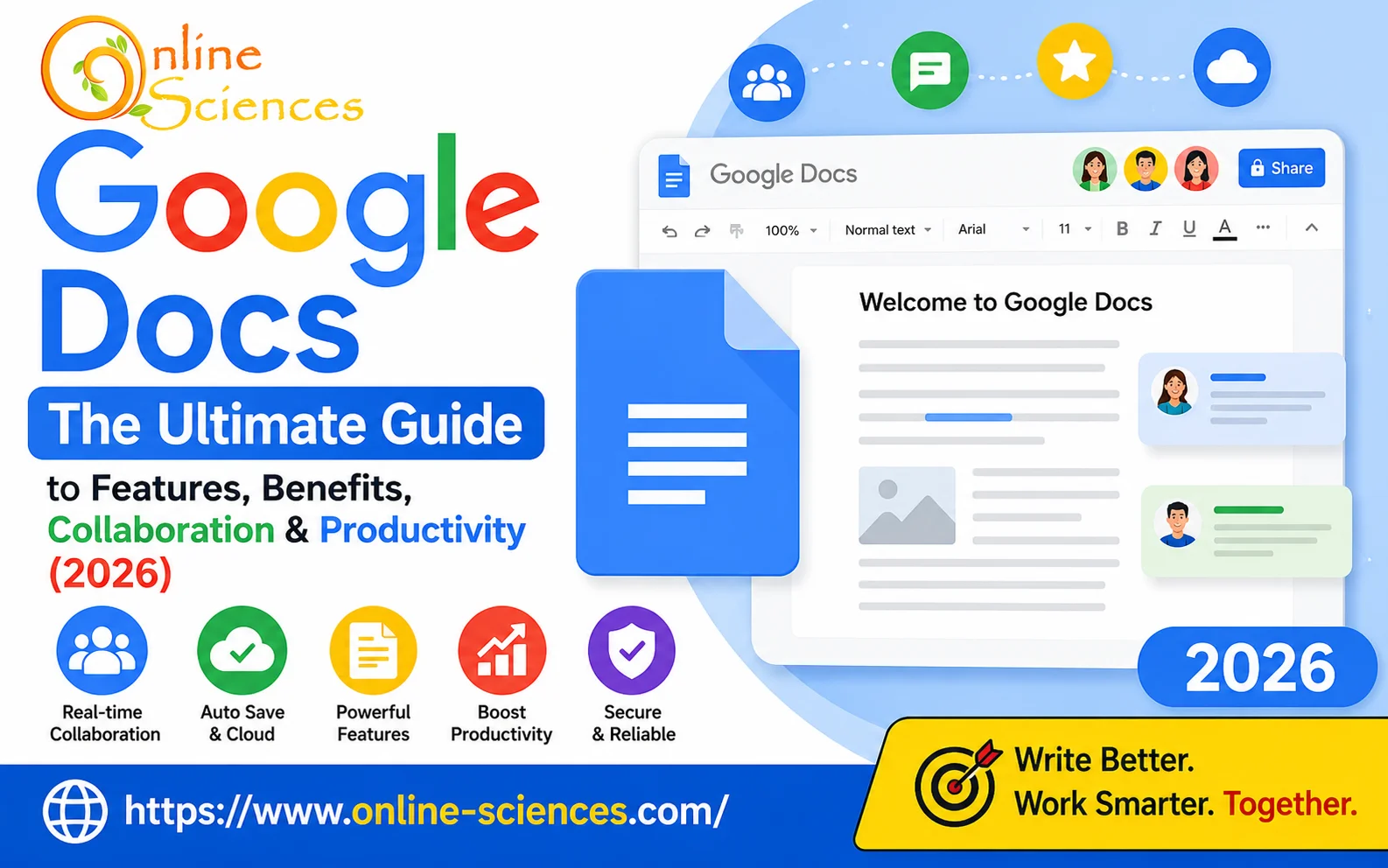
Google Docs
Google Docs
Google Docs has become one of the world’s most popular cloud-based word processors, allowing users to create, edit, and collaborate on documents from virtually anywhere. Whether you’re writing reports, preparing assignments, drafting contracts, or collaborating on business proposals, Google Docs offers powerful tools that simplify document creation while eliminating the need for constant file transfers.
What is Google Docs?
Google Docs is a free online word-processing application developed by Google as part of the Google Workspace productivity suite. It enables users to create professional documents directly in a web browser without installing software. Unlike traditional desktop applications, Google Docs automatically saves every change in real time, ensuring your work is always protected.
Why Google Docs is So Popular
Millions of people use Google Docs daily because it offers:
- Free cloud storage.
- Automatic saving.
- Real-time collaboration.
- Easy sharing.
- Cross-device compatibility.
- Built-in version history.
- Excellent integration with Google services.
- AI-powered writing assistance.
These advantages make it suitable for students, teachers, freelancers, businesses, and enterprise organizations.
Features of Google Docs
Real-Time Collaboration
One of Google Docs’ biggest strengths is collaborative editing.
Multiple users can:
- Edit simultaneously.
- Leave comments.
- Suggest changes.
- Chat while editing.
- Track revisions instantly.
This eliminates the confusion of emailing multiple document versions.
Automatic Cloud Saving
Every edit is automatically saved to Google Drive.
Benefits include:
- No manual saving.
- Reduced risk of losing work.
- Instant synchronization.
- Easy recovery after unexpected shutdowns.
Version History
Google Docs stores previous document versions.
You can:
- Restore older versions.
- See who made changes.
- Compare revisions.
- Track project development.
This feature is invaluable for team collaboration.
Offline Editing
Even without internet access, users can continue editing documents after enabling Offline Mode. Changes synchronize automatically once the connection returns.
Smart Formatting
Google Docs includes numerous formatting tools:
- Fonts.
- Styles.
- Headings.
- Tables.
- Images.
- Charts.
- Page numbering.
- Headers and footers.
- Citations.
- Footnotes.
Professional documents can be created without advanced design knowledge.
Built-in Templates
Google Docs provides templates for:
- Resumes.
- Business letters.
- Reports.
- Meeting notes.
- Project proposals.
- Newsletters.
- Brochures.
Templates significantly reduce document preparation time.
Google Docs AI Features
Google continues integrating AI into Google Docs. Modern AI capabilities include:
- Writing assistance.
- Grammar improvements.
- Sentence rewriting.
- Content summarization.
- Brainstorming ideas.
- Draft generation.
- Tone adjustments.
These tools help improve productivity while maintaining writing quality.
Advantages of Google Docs
Easy Accessibility
Access documents from:
- Windows.
- Mac.
- Chromebook.
- Android.
- iPhone.
- Tablets.
Only a browser and a Google account are required.
Free to Use
The personal version costs nothing while offering generous cloud storage through Google Drive. Businesses can subscribe to Google Workspace for additional administrative and security features.
Excellent Collaboration
Google Docs remains one of the best collaborative writing platforms available. Shared documents update instantly without requiring users to refresh pages.
Strong Security
Security features include:
- Two-factor authentication.
- Encryption.
- Permission controls.
- Sharing restrictions.
- Activity history.
These help protect sensitive information.
Disadvantages of Google Docs
Although highly capable, Google Docs has some limitations. Potential drawbacks include:
- Fewer advanced formatting options than desktop word processors.
- An internet connection is recommended for the best experience.
- Large documents may occasionally feel slower.
- Some complex Microsoft Word formatting may not transfer perfectly.
Google Docs for Students
Students benefit from:
- Group assignments.
- Research papers.
- Shared notes.
- Teacher feedback.
- Automatic saving.
- Cloud accessibility.
Its simplicity makes it ideal for educational environments.
Google Docs for Businesses
Businesses commonly use Google Docs for:
- Contracts.
- Reports.
- Documentation.
- Meeting minutes.
- Project planning.
- Employee manuals.
- Collaborative writing.
Integration with Google Workspace increases productivity across teams.
Google Docs for Content Creators
Writers, bloggers, and marketers appreciate:
- Distraction-free writing.
- Grammar suggestions.
- Team editing.
- Easy publishing workflow.
- Cloud backup.
- Cross-device editing.
Many websites draft articles entirely inside Google Docs.
Google Docs Productivity Tips
Improve efficiency by:
- Using keyboard shortcuts.
- Creating reusable templates.
- Organizing files into folders.
- Using document outlines.
- Enabling offline mode.
- Utilizing voice typing.
- Taking advantage of comments and suggestions.
- Regularly reviewing version history.
Google Docs vs Microsoft Word
Google Docs and Microsoft Word are both excellent word processors, but they serve slightly different audiences.
- Collaboration: Google Docs excels in real-time collaboration, allowing multiple users to edit the same document simultaneously without complicated setup. Microsoft Word also supports collaboration, especially through Microsoft 365, but Google Docs generally offers a smoother browser-based experience.
- Accessibility: Google Docs works directly from any web browser and syncs automatically across devices. Microsoft Word provides powerful desktop functionality and cloud access, but many advanced features require a Microsoft 365 subscription.
- Offline Performance: Microsoft Word offers more robust offline functionality and advanced editing tools. Google Docs also supports offline editing, but users must enable it beforehand.
- Formatting and Advanced Features: Microsoft Word includes more sophisticated formatting options, advanced layout tools, and extensive publishing capabilities. Google Docs focuses on simplicity, speed, and collaboration.
- Pricing: Google Docs is free for personal use with a Google account. Microsoft Word is available through Microsoft 365 subscriptions or as a standalone desktop application, depending on the edition.
Google Docs vs LibreOffice Writer
LibreOffice Writer is a powerful open-source desktop application that works entirely offline. It offers advanced formatting features and supports a wide range of file formats. Google Docs, however, stands out with cloud storage, automatic saving, seamless collaboration, and easy sharing, making it a better choice for teams and online workflows.
Google Docs vs Apple Pages
Apple Pages provides elegant templates and excellent design tools for Mac, iPhone, and iPad users. Google Docs is more platform-independent, making it easier to collaborate with users across Windows, Android, macOS, and Linux without compatibility issues.
Who Should Use Google Docs?
Google Docs is ideal for:
- Students.
- Teachers.
- Freelancers.
- Bloggers.
- Journalists.
- Businesses.
- Remote teams.
- Researchers.
- Project managers.
- Anyone needing cloud-based document editing.
Frequently Asked Questions (FAQ) about Google Docs
1. Is Google Docs completely free?
Yes. Google Docs is free for personal users with a Google account.
2. Can I use Google Docs offline?
Yes. Offline mode allows editing without internet after enabling the feature.
3. Does Google Docs automatically save documents?
Yes. Every change is saved automatically in real time.
4. Can multiple people edit the same document?
Yes. Google Docs supports simultaneous collaboration by multiple users.
5. Is Google Docs better than Microsoft Word?
It depends on your needs. Google Docs is better for collaboration and cloud accessibility, while Microsoft Word offers more advanced formatting and publishing features.
6. Does Google Docs support PDF export?
Yes. Documents can be downloaded as PDF, Word, EPUB, and several other formats.
7. Can Google Docs replace Microsoft Word?
For many everyday users, yes. However, professionals requiring advanced publishing, complex formatting, or specialized features may still prefer Microsoft Word.
Conclusion
Google Docs remains one of the best cloud-based document editors in 2026, combining ease of use, powerful collaboration tools, automatic cloud saving, and AI-assisted writing into a single platform. Whether you’re a student preparing assignments, a business professional collaborating with colleagues, or a content creator producing articles, Google Docs offers an efficient and reliable writing experience. Its accessibility across devices, generous free features, and seamless integration with the Google ecosystem make it an excellent choice for modern document creation.
You can subscribe to Science Online on YouTube from this link: Science Online
Google Maps advantages, disadvantages, and Is the Google Maps app free?
Google Assistant Review 2026: Features, Pros, Cons and What It Can Do
Claude AI advantages, disadvantages, features and Is Claude better than GPT 4?
Claude Sonnet 4.5 features, advantages, disadvantages, Is Claude Sonnet 4 better than GPT 4?
Gemini AI review, advantages, disadvantages and Is Gemini AI better than ChatGPT?
ChatGPT review, features, advantages and disadvantages
Google Bard AI chatbot advantages, disadvantages, review, features and Bard vs ChatGPT
Global Positioning System (GPS Tracking System) advantages and disadvantages
Global Navigation Satellite System (GNSS) types, uses and importance
Idea of launching the satellite & Factors affecting the orbital velocity of a satellite