
Google Drive: 15 Powerful Features, Benefits, Pricing, and Complete Guide (2026)
Google Drive is one of the world’s most popular cloud storage platforms, allowing users to securely store, organize, share, and access files from virtually any device. Whether you’re backing up photos, collaborating on work documents, or managing large projects, Google Drive offers fast synchronization, powerful collaboration tools, and seamless integration with the Google ecosystem, making it an excellent choice for students, professionals, and businesses alike.
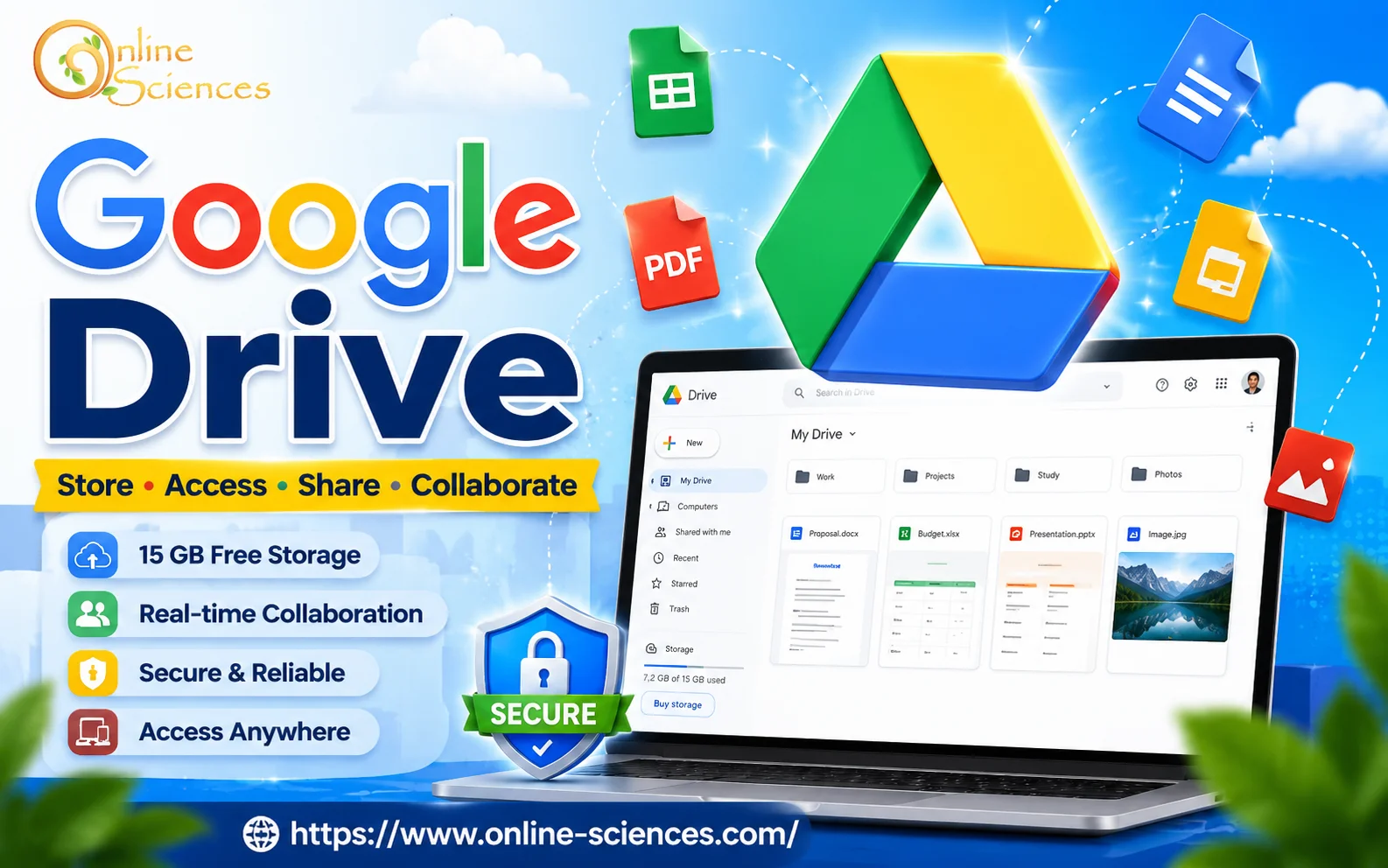
Google Drive
What is Google Drive?
Google Drive is Google’s cloud storage service that lets users store files online rather than relying solely on local storage. Launched in 2012, it has evolved into a comprehensive productivity platform that works seamlessly with:
- Google Docs.
- Google Sheets.
- Google Slides.
- Google Forms.
- Google Meet.
- Gmail.
- Google Photos.
- Google Workspace.
Millions of individuals, schools, and organizations rely on Google Drive every day for secure cloud storage and real-time collaboration.
Key Features of Google Drive
1. Cloud Storage
Store:
- Documents.
- Images.
- Videos.
- Audio files.
- PDFs.
- ZIP archives.
- CAD files.
- Code files.
and virtually any file format.
2. Real-Time Collaboration
Multiple users can:
- Edit documents simultaneously.
- Leave comments.
- Suggest changes.
- View revision history.
- Restore previous versions.
without creating duplicate files.
3. Automatic Backup
Google Drive automatically backs up:
- Desktop folders.
- Photos.
- Videos.
- Documents.
using Google Drive for Desktop.
4. Cross-Platform Access
Compatible with:
5. Powerful Search
Google’s AI-powered search helps users find files quickly using:
- File names.
- Keywords.
- Image recognition.
- OCR text.
- File type.
- Owner.
- Date.
6. Offline Mode
Users can continue editing files without an internet connection. Changes synchronize automatically once connected.
7. File Sharing
Share files using:
- Email invitations.
- Public links.
- Restricted access.
- Viewer permissions.
- Commenter permissions.
- Editor permissions.
8. Version History
Recover previous versions of files after accidental edits.
9. Google Workspace Integration
Works perfectly with:
- Gmail.
- Calendar.
- Meet.
- Docs.
- Sheets.
- Slides.
- Keep.
10. AI Features
Google Drive increasingly integrates AI to:
- Summarize documents.
- Organize files.
- Improve search.
- Suggest content.
- Increase productivity.
Google Drive Storage Plans
- Free: 15 GB.
- Basic: 100 GB.
- Standard: 200 GB.
- Premium: 2 TB.
- AI Premium: 2 TB + Gemini AI.
- Business Plans: Flexible storage.
Advantages of Google Drive
- Easy to use.
- Excellent collaboration tools.
- Fast synchronization.
- Strong security.
- Automatic backup.
- Cross-platform support.
- Excellent mobile apps.
- AI-powered search.
- Works with Microsoft Office files.
- Version history.
- File recovery.
- Shared drives for teams.
- Offline editing.
- Free storage included.
- Frequent feature updates.
Disadvantages of Google Drive
- Free storage may not be enough for heavy users.
- Upload speed depends on your internet connection.
- Some advanced collaboration tools require Google Workspace.
- Privacy-conscious users may prefer end-to-end encrypted alternatives.
- Large organizations may require additional administrative setup.
Google Drive Security
Google protects files using:
- AES encryption.
- TLS encryption.
- Two-factor authentication.
- Malware scanning.
- Spam detection.
- Secure data centers.
- Account activity monitoring.
Users should also enable:
- Two-step verification.
- Recovery email.
- Strong passwords.
Google Drive for Students
Students can:
- Store assignments.
- Collaborate on projects.
- Share notes.
- Submit homework.
- Organize research papers.
- Access files anywhere.
Google Drive for Businesses
Businesses benefit from:
- Team collaboration.
- Shared folders.
- Permission management.
- Secure cloud storage.
- Activity logs.
- Administrative controls.
- Google Workspace integration.
Google Drive Tips
- Organize files using folders.
- Use color labels.
- Star important files.
- Enable offline mode.
- Regularly review shared files.
- Delete unnecessary large files.
- Use shortcuts instead of duplicates.
- Activate two-factor authentication.
Who Should Use Google Drive?
Google Drive is ideal for:
- Students.
- Teachers.
- Freelancers.
- Content creators.
- Businesses.
- Remote workers.
- Developers.
- Researchers.
- Families.
- Photographers.
Google Drive Performance
Google Drive delivers:
- Fast uploads.
- Reliable synchronization.
- Stable performance.
- Minimal downtime.
- Excellent browser experience.
- Responsive mobile applications.
Is Google Drive Worth It?
For most users, Google Drive remains one of the best cloud storage services available in 2026. The combination of generous free storage, seamless collaboration, strong security, and integration with Google Workspace makes it a practical choice for both personal and professional use. Users who rely heavily on Google Docs, Gmail, and Android devices will benefit the most from its ecosystem.
Google Drive Comparison
Google Drive vs Microsoft OneDrive
Google Drive and Microsoft OneDrive are two of the most popular cloud storage services, but they cater to different ecosystems. Google Drive is the better choice for users who rely on Gmail, Google Docs, Sheets, Slides, and Android devices, offering 15 GB of free storage and excellent real-time collaboration. OneDrive, on the other hand, integrates seamlessly with Microsoft 365 applications like Word, Excel, and PowerPoint, making it ideal for Windows users and business professionals. If your workflow revolves around Google Workspace, Google Drive is the more convenient option, while OneDrive excels for Microsoft Office users.
Google Drive vs Dropbox
Google Drive and Dropbox both provide reliable cloud storage and file sharing, but they have different strengths. Google Drive offers significantly more free storage (15 GB compared to Dropbox’s 2 GB) and includes powerful collaboration tools through Google Workspace. Dropbox is renowned for its fast and dependable file synchronization, making it a favorite among creative professionals and teams handling large files. However, for most users looking for an all-in-one productivity platform with generous free storage, Google Drive delivers better overall value.
Google Drive vs Apple iCloud Drive
Google Drive and Apple iCloud Drive are designed for different user bases. Google Drive works across Android, Windows, macOS, and iOS, providing greater flexibility for users with multiple devices. iCloud Drive is optimized for the Apple ecosystem, offering seamless synchronization between iPhone, iPad, and Mac devices. While iCloud Drive is the best option for dedicated Apple users, Google Drive is more versatile, especially for people who use a mix of operating systems or frequently collaborate with others.
Google Drive vs Box
Google Drive is an excellent choice for individuals, students, and small businesses seeking affordable cloud storage with strong collaboration features. Box, however, focuses on enterprise customers by offering advanced security, compliance tools, and administrative controls for large organizations. Businesses in regulated industries may prefer Box for its governance capabilities, while Google Drive remains the better option for everyday productivity, document sharing, and collaborative work.
Which Cloud Storage Service is the Best?
The best cloud storage service depends on your needs. Google Drive is the top choice for users who want generous free storage, real-time collaboration, and deep integration with Google’s productivity apps. Microsoft OneDrive is ideal for Microsoft 365 subscribers, Dropbox is excellent for fast file syncing and professional file sharing, while iCloud Drive is perfect for Apple users.
Overall, Google Drive stands out as one of the most balanced cloud storage solutions in 2026, combining ease of use, powerful collaboration tools, strong security, and excellent cross-platform compatibility.
Winner: Google Drive stands out for users who value collaboration, generous free storage, and deep integration with Google’s productivity tools. OneDrive is the better fit for Microsoft 365 users, Dropbox excels in simple file sharing, while iCloud Drive is ideal for those fully invested in the Apple ecosystem.
Frequently Asked Questions (FAQ) about Google Drive
1. Is Google Drive free?
Yes. Every Google account includes 15 GB of free cloud storage shared across Google Drive, Gmail, and Google Photos.
2. How secure is Google Drive?
Google Drive uses encryption during file transfer and storage, supports two-factor authentication, and includes malware detection and account security features.
3. Can I use Google Drive offline?
Yes. You can enable offline access to view and edit supported files without an internet connection. Changes sync automatically when you’re back online.
4. Does Google Drive work with Microsoft Office files?
Yes. You can upload, store, edit, and share Microsoft Word, Excel, and PowerPoint files directly from Google Drive.
5. How much storage does Google Drive provide?
The free plan includes 15 GB of storage, with paid plans offering 100 GB, 200 GB, 2 TB, and larger capacities for businesses.
6. Can multiple people edit the same document?
Yes. Google Drive allows multiple users to collaborate on the same document in real time with comments, suggestions, and version history.
7. Is Google Drive suitable for businesses?
Yes. Businesses can use Google Workspace with Google Drive for advanced collaboration, secure file sharing, administrative controls, and scalable storage options.
8. Which is better: Google Drive or Dropbox?
Google Drive is generally better for productivity, collaboration, and free storage, while Dropbox is known for its reliable synchronization and straightforward file-sharing experience.
8. Can I recover deleted files?
Yes. Deleted files are typically moved to the Trash and can be restored within the retention period unless permanently deleted.
9. Does Google Drive automatically back up my computer?
Yes. Using Google Drive for Desktop, you can automatically back up selected folders, photos, and files from your computer to the cloud.
You can follow science online on YouTube from this link: Science online
Gemini Takes Over: The End of Google Assistant in 2026! 🚀
Goodbye Google Assistant: Can Your Android Phone Actually Run Gemini? 🚀
Goodbye Google Assistant? 10 Powerful Reasons Gemini AI Is the Future in 2026
Will Gemini AI Replace Google Assistant? The Ultimate Guide to Google’s Powerful AI Upgrade 2026
Google Assistant Review 2026: Features, Pros, Cons and What It Can Do
Claude AI advantages, disadvantages, features and Is Claude better than GPT 4?
Claude Sonnet 4.5 features, advantages, disadvantages, Is Claude Sonnet 4 better than GPT 4?
Gemini AI review, advantages, disadvantages and Is Gemini AI better than ChatGPT?
ChatGPT review, features, advantages and disadvantages
Google Bard AI chatbot advantages, disadvantages, review, features and Bard vs ChatGPT